Introduction
Your computer’s IP address is an essential part of any network connection. Whether you’re troubleshooting internet issues, configuring Remote Desktop, setting up a printer, or connecting to another device, knowing how to find your IP address is a valuable skill.
In this guide, you’ll learn four simple methods to find both your local (private) IP address and your public IP address on Windows 11.
What Is an IP Address?
An IP (Internet Protocol) address is a unique number assigned to your device on a network.
There are two common types:
- Private IP Address – Used within your local network (home or office).
- Public IP Address – Assigned by your Internet Service Provider (ISP) and visible on the internet.
Most troubleshooting tasks require your private IP address.
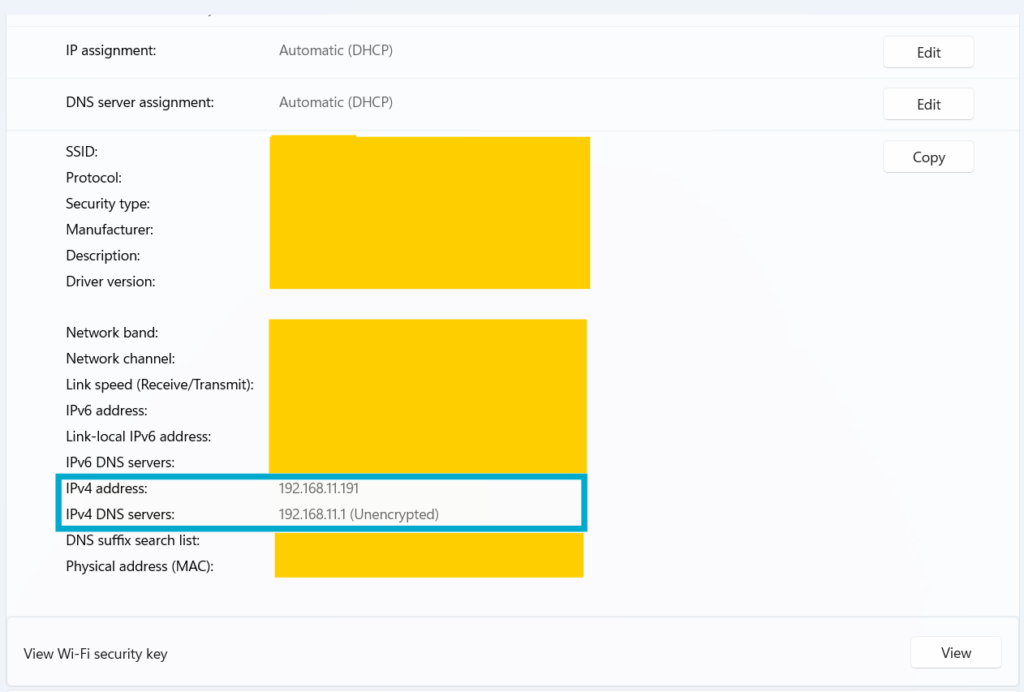
Method 1: Find Your IP Address Using Settings
This is the easiest method for most users.
Steps
- Press Windows + I to open Settings.
- Select Network & Internet.
- Click Wi-Fi or Ethernet, depending on your connection.
- Select your active network.
- Scroll down to IPv4 Address.
Your IP address will be displayed there.
Method 2: Find Your IP Address Using Command Prompt
Command Prompt provides detailed network information.
Steps
- Press Windows + R.
- Type:
cmd- Press Enter.
- Run the following command:
ipconfigLook for:
IPv4 Address . . . . . . . . . : 192.168.11.191Method 3: Find Your IP Address Using PowerShell
PowerShell provides another quick way to view your IP configuration.
Open PowerShell and run:
Get-NetIPAddress -AddressFamily IPv4Find the IPAddress value associated with your active network adapter.
Method 4: Find Your Public IP Address
To view your public IP address:
- Open your web browser.
- Search for:
What is my IPor visit a trusted service such as:
This address is assigned by your ISP and is different from your local network IP.
Common Issues
Multiple IP Addresses
If your computer has Wi-Fi, Ethernet, or virtual adapters enabled, you may see multiple IP addresses. Check the adapter currently connected to your network.
No IPv4 Address Displayed
If you only see an address beginning with 169.254, Windows could not obtain an IP address from the DHCP server.
Try:
- Restarting your router.
- Disabling and re-enabling the network adapter.
- Running:
ipconfig /renewFrequently Asked Questions
Is my public IP the same as my private IP?
No. Your private IP is used within your local network, while your public IP is assigned by your ISP.
Can my IP address change?
Yes. Most home networks use dynamic IP addresses that may change periodically unless you have a static IP.
Why do I need my IP address?
You may need it for:
- Troubleshooting network problems
- Remote Desktop
- Printer configuration
- File sharing
- Network administration
Conclusion
Finding your IP address on Windows 11 is quick and straightforward. Whether you prefer using the Settings app, Command Prompt, or PowerShell, Windows provides several easy methods to access your network information.
Understanding your IP address is an essential skill for troubleshooting and managing your computer more effectively.