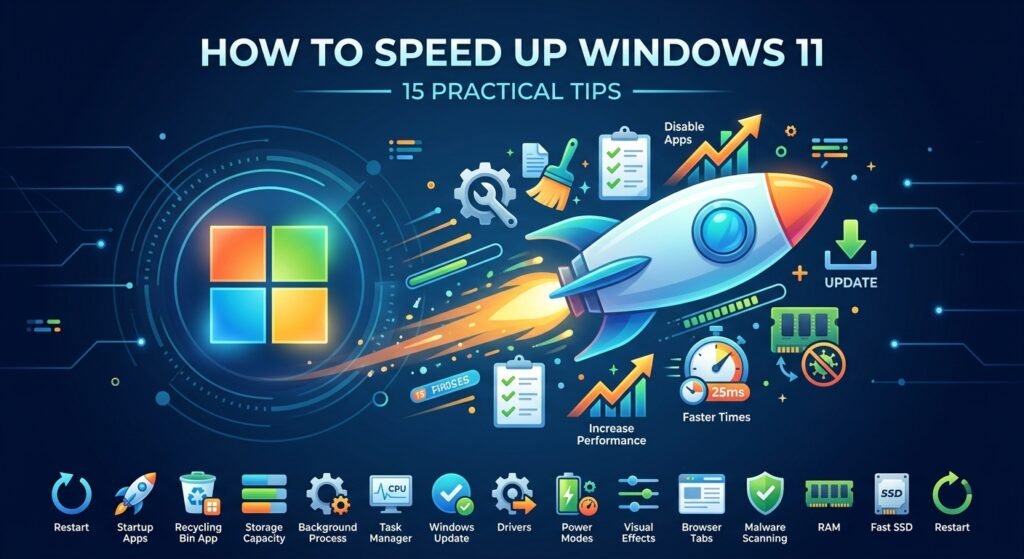
How to Speed Up Windows 11: 15 Practical Tips
Windows 11 is generally fast and responsive, but over time a computer can become slower because of startup programs, unnecessary files, background applications, outdated drivers, or limited hardware resources.
If your Windows 11 PC feels slow, you don’t necessarily need to reinstall Windows. In this guide, we’ll look at practical ways to speed up Windows 11 and improve everyday performance.
1. Restart Your Computer
It sounds simple, but restarting Windows can solve temporary performance problems.
A restart clears temporary system processes and can release memory used by applications running in the background.
If your computer has been running for several days, a restart is a good first troubleshooting step.
2. Disable Unnecessary Startup Apps
Many applications automatically start when you log in to Windows.
Too many startup applications can increase boot time and consume system resources.
Open:
Ctrl + Shift + Esc → Task Manager → Startup apps
Review the list and disable applications you don’t need immediately after starting Windows.
Keep important security software and Windows components enabled.
3. Remove Unnecessary Applications
Unused applications can consume storage and sometimes run background services.
Go to:
Settings → Apps → Installed apps
Review the applications installed on your computer and uninstall software you no longer use.
Before uninstalling anything, make sure you know what the application does.
4. Free Up Disk Space
A nearly full drive can contribute to poor system performance.
Open:
Settings → System → Storage
Check which categories are using the most space.
You can remove:
- Temporary files
- Recycle Bin contents
- Unnecessary downloads
- Old installation files
- Unused applications
Windows also provides Storage Sense, which can automatically remove certain unnecessary files.
5. Reduce Background Applications
Some applications continue running in the background even when you are not actively using them.
Review the applications installed on your PC and limit unnecessary background activity where Windows provides the option.
This can reduce CPU, memory, and battery usage.
6. Check Task Manager
Task Manager is one of the most useful tools for diagnosing a slow Windows computer.
Press:
Ctrl + Shift + Esc
Check:
- CPU
- Memory
- Disk
- Network
If one application constantly consumes a large amount of CPU or memory, investigate that application before simply ending the process.
7. Update Windows
Microsoft regularly releases Windows updates containing security improvements, bug fixes, and performance improvements.
Go to:
Settings → Windows Update
Click:
Check for updates
Install available updates and restart the computer if required.
Keeping Windows updated is an important part of maintaining a reliable system.
8. Update Hardware Drivers
Outdated or problematic drivers can cause performance and stability issues.
Check important drivers such as:
- Graphics
- Network
- Chipset
- Audio
- Storage controllers
You can use Device Manager to inspect installed hardware and drivers.
For major hardware updates, it is generally best to use drivers provided by the computer or hardware manufacturer.
9. Use the Best Power Mode for Your Situation
Windows 11 provides different power modes.
Go to:
Settings → System → Power & battery
Depending on your computer and situation, you may be able to select a performance-oriented power mode.
On laptops, remember that higher performance can increase power consumption and reduce battery life.
10. Reduce Visual Effects
Windows 11 includes animations and visual effects that make the interface look smoother.
On older or lower-powered computers, reducing some effects may improve responsiveness.
Search Windows for:
Adjust the appearance and performance of Windows
Then review the available visual effects.
You can choose settings that prioritize performance.
11. Keep Your Browser Under Control
Web browsers can consume significant amounts of RAM, especially with many tabs and extensions open.
If your computer feels slow while browsing:
- Close unused tabs.
- Remove unnecessary extensions.
- Restart the browser.
- Check browser task managers when available.
- Avoid keeping large numbers of applications and browser tabs open simultaneously.
12. Scan for Malware
Malware can consume CPU, memory, network bandwidth, and storage resources.
Run a security scan using your installed security solution.
With Windows Security, you can access:
Settings → Privacy & security → Windows Security
Then review:
Virus & threat protection
Regular security updates and scans help keep your system protected.
13. Check Available RAM
If your computer frequently uses almost all available memory, applications may become slower.
Open:
Task Manager → Performance → Memory
Check how much RAM is installed and how much is currently being used.
If memory usage remains very high during normal work, closing unnecessary applications may help.
For older systems, upgrading RAM may also provide a significant improvement if the hardware supports it.
14. Check Your Storage Drive
Storage performance can have a major effect on Windows responsiveness.
An SSD is generally much faster than a traditional mechanical hard drive for everyday Windows tasks.
If your computer still uses an HDD and supports an SSD upgrade, moving Windows to an SSD can provide a substantial improvement in startup and application loading times.
Before replacing or upgrading storage, verify compatibility with your computer.
15. Restart Before Performing Advanced Troubleshooting
Before making advanced changes to Windows, restart the computer and test the performance again.
If the system remains slow, identify the specific symptom:
- Slow startup
- Slow applications
- High CPU usage
- High memory usage
- High disk usage
- Slow internet
- Random freezing
Identifying the actual bottleneck is more effective than changing multiple Windows settings at once.
Windows 11 Performance Checklist
If your Windows 11 PC is slow, start with these steps:
- Restart the computer.
- Disable unnecessary startup applications.
- Remove unused software.
- Free up disk space.
- Check Task Manager.
- Install Windows updates.
- Update important drivers.
- Reduce unnecessary visual effects.
- Check browser tabs and extensions.
- Run a malware scan.
- Check RAM usage.
- Check the health and performance of your storage drive.
Work through these steps one at a time and test your computer after each major change.
When Should You Upgrade Your Hardware?
Software optimization cannot solve every performance problem.
If your computer has very limited RAM, an old processor, or a slow mechanical hard drive, hardware upgrades may provide a bigger improvement than changing Windows settings.
Before purchasing hardware, check your computer’s specifications and upgrade compatibility.
Conclusion
Learning how to speed up Windows 11 starts with identifying what is actually slowing the computer down.
Disabling unnecessary startup applications, freeing storage space, updating Windows and drivers, checking Task Manager, and reducing unnecessary background activity can make a noticeable difference.
For older computers, upgrading components such as RAM or replacing an HDD with an SSD can provide an even greater improvement.
The best approach is to diagnose the problem first, make one change at a time, and measure the result.