In the previous guide, we introduced Linux, distributions, the terminal, basic commands, and the Linux file system.
Now it’s time to go one step further.
Understanding Linux fundamentals such as users, groups, permissions, software management, and services is essential if you want to work with Linux servers or become a system administrator.
In this guide, we’ll cover the most important concepts you should learn after mastering the basics.
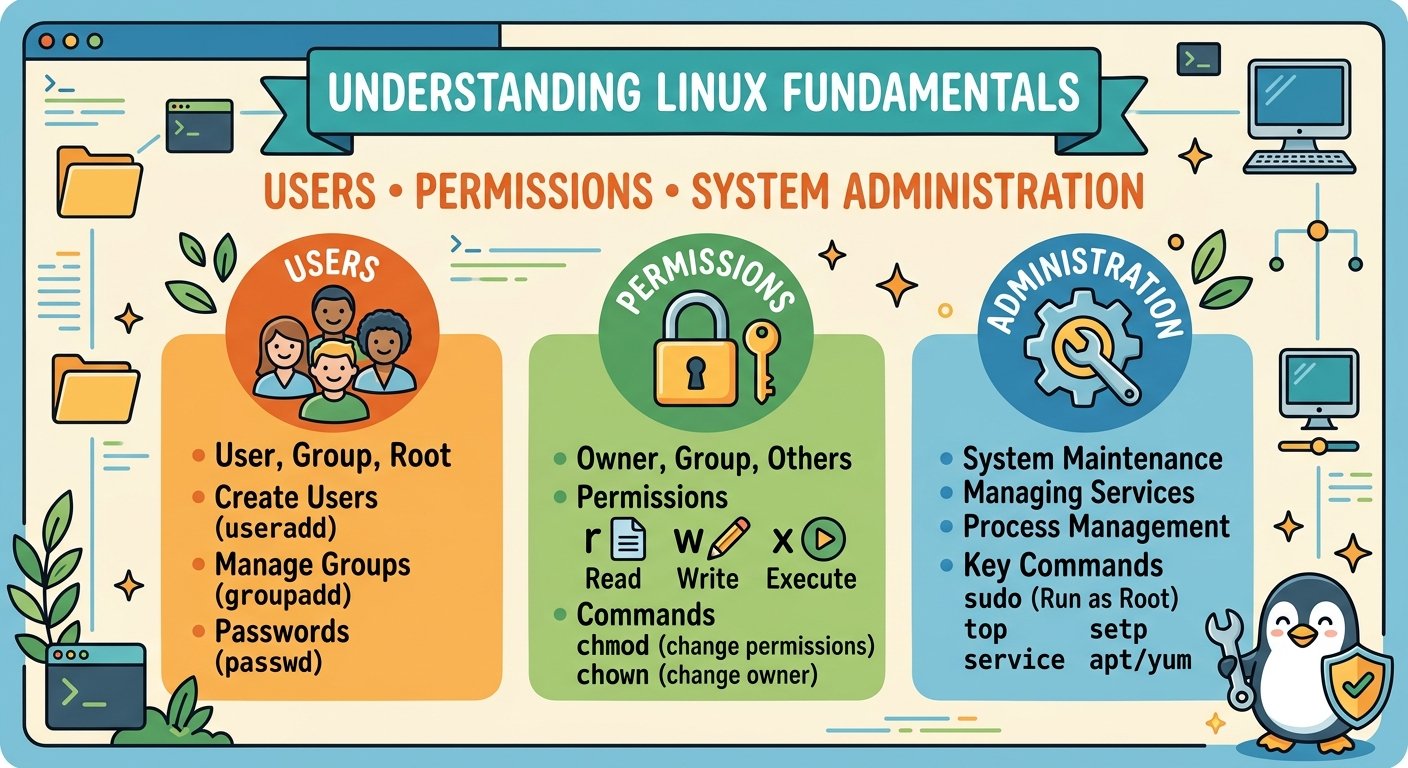
1. Linux Users
Linux is designed as a multi-user operating system.
A Linux computer can have multiple user accounts, and each user can have different permissions.
For example:
User: mohamed
Home directory: /home/mohamed
Each user normally has their own home directory where they can store personal files.
You can see the current logged-in user with:
whoamiYou can also see information about users currently logged into the system with:
who2. Linux Groups
Groups allow administrators to manage permissions for multiple users.
For example, a company might have:
Group: developersUsers who belong to this group can be given access to development files without giving them full administrator privileges.
To see the groups associated with your current user:
groupsGroups are especially useful in business and server environments.
3. The Root User
Linux has a special administrator account called root.
The root user has extensive privileges and can modify almost anything on the system.
You can check whether you’re working as root with:
whoamiIf the result is:
rootyou’re using the root account.
Because root has very powerful permissions, it should be used carefully.
4. Using Sudo
Instead of logging in directly as root, Linux administrators commonly use:
sudosudo allows an authorized user to execute a command with elevated privileges.
For example:
sudo apt updateYou may be asked for your user password.
Using sudo is safer than constantly working as root because administrative privileges are only used when required.
5. Understanding Linux File Permissions
File permissions are one of the most important Linux concepts.
Linux permissions determine who can:
- Read a file
- Modify a file
- Execute a file
The three basic permissions are:
| Permission | Symbol | Meaning |
|---|---|---|
| Read | r | View contents |
| Write | w | Modify contents |
| Execute | x | Run the file |
For example:
-rwxr-xr--The permissions are divided between:
Owner | Group | OthersUnderstanding this structure is essential when working with Linux servers.
6. Changing Permissions with chmod
The chmod command changes file permissions.
For example:
chmod +x script.shThis gives the file execute permission.
You may also see numeric permissions such as:
chmod 755 script.shA common interpretation is:
7 = read + write + execute
5 = read + execute
5 = read + execute
Therefore:
755means:
Owner  → rwx
Group  → r-x
Others → r-x
Be careful when changing permissions on system files.
7. Changing File Ownership
Linux files also have an owner and group.
The chown command can change ownership.
Example:
sudo chown mohamed:developers project.txtThis changes:
- Owner →
mohamed - Group →
developers
Ownership management becomes particularly important on shared servers.
8. Installing Software on Linux
Linux distributions commonly use package managers to install and update software.
For Ubuntu and Debian, the main package manager is:
APTUpdate package information:
sudo apt updateUpgrade installed packages:
sudo apt upgradeInstall software:
sudo apt install nginxRemove software:
sudo apt remove nginxPackage managers make software installation much easier than manually downloading and installing every dependency.
9. Different Linux Package Managers
Different distributions use different package management systems.
| Distribution | Package Manager |
|---|---|
| Ubuntu | APT |
| Debian | APT |
| Fedora | DNF |
| Rocky Linux | DNF |
| Arch Linux | Pacman |
You don’t need to learn all of them immediately.
Start with the package manager used by your Linux distribution.
10. Linux Services
Linux servers commonly run background services.
Examples include:
- Web servers
- SSH
- Database servers
- DNS
- Network services
Modern Linux distributions commonly use systemd to manage services.
The main command is:
systemctlFor example, to check the status of SSH:
sudo systemctl status sshTo start a service:
sudo systemctl start sshTo stop it:
sudo systemctl stop sshTo restart it:
sudo systemctl restart sshThese commands are extremely useful for system administrators.
11. Checking Linux Logs
Logs help administrators understand what is happening on a system.
With systemd-based distributions, you can use:
journalctlFor example:
sudo journalctl -u sshThis can show logs related to the SSH service.
Learning how to read logs is an important troubleshooting skill.
12. Linux and SSH
SSH (Secure Shell) is one of the most important tools for Linux administration.
It allows administrators to remotely connect to a Linux server.
For example:
ssh user@192.168.1.10Once connected, you can manage the remote server using the terminal.
SSH is widely used in:
- Data centers
- Cloud platforms
- Hosting environments
- Network administration
- DevOps
13. Linux and Servers
Linux is extremely common in server environments.
A Linux server can provide:
- Web hosting
- DNS
- DHCP
- Databases
- File sharing
- VPN services
- Monitoring
- Application hosting
For example, a server running Nginx can host websites and web applications.
This is one of the main reasons Linux skills are valuable for IT professionals.
14. Linux and Cloud Computing
Linux is also heavily used in cloud computing.
Cloud providers such as AWS, Microsoft Azure, and Google Cloud offer many Linux-based virtual machines.
When working with cloud infrastructure, you’ll often need to understand:
- SSH
- Linux users
- Permissions
- Networking
- Services
- Storage
- Logs
- Security
This makes Linux fundamentals an excellent foundation for learning cloud administration.
15. Linux and Cybersecurity
Linux is also widely used in cybersecurity.
Security professionals use Linux for:
- Network analysis
- Security testing
- Log analysis
- System monitoring
- Incident response
- Security research
However, before learning advanced security tools, it’s better to understand Linux administration first.
Knowing how users, permissions, services, processes, and networking work will make cybersecurity concepts much easier to understand.
A Simple Linux Learning Path
If you’re learning Linux from the beginning, follow this order:
Level 1 — Basics
Learn:
- Terminal
- Files and directories
- Basic commands
- File system
Level 2 — Administration
Learn:
- Users
- Groups
- Permissions
sudo- Package management
- Services
Level 3 — Networking
Learn:
- IP addresses
- DNS
- SSH
- Ports
pingipsscurl
Level 4 — Advanced Administration
Learn:
- Bash scripting
- Cron jobs
- System monitoring
- Logs
- Firewalls
- Backup
- Storage management
Level 5 — Professional Skills
Move toward:
- Linux servers
- Cloud
- Docker
- Kubernetes
- DevOps
- Cybersecurity
Practical Exercise for Beginners
If you have Ubuntu installed in a virtual machine, try this small exercise.
Create a directory
mkdir linux-labEnter it
cd linux-labCreate a file
touch test.txtCheck the file
ls -lAdd execute permission
chmod +x test.txtCheck permissions again
ls -lThis simple exercise helps you understand how Linux files and permissions work.
Conclusion
Understanding Linux fundamentals is an important step toward becoming comfortable with Linux administration.
Users, groups, permissions, sudo, package managers, services, logs, and SSH are some of the most important concepts to learn after mastering basic Linux commands.
Once you understand these fundamentals, you can move toward more advanced areas such as Linux networking, servers, cloud computing, DevOps, and cybersecurity.
FAQ
What should I learn first in Linux?
What is sudo in Linux?
sudo allows an authorized user to execute commands with elevated privileges.